
Download File Transfer – Easy Cross‑Platform File Sharing
Overview
File Transfer is a lightweight, cross‑platform application designed to make moving files between devices as effortless as dragging and dropping a document on your desktop. Whether you’re juggling a Windows PC, a macOS laptop, an Android phone, or an iPhone, File Transfer discovers nearby devices automatically and establishes a direct, local‑network connection without the need for iTunes, USB cables, or cloud services. The app’s intuitive interface lets you browse local storage, sort files into folders, and initiate transfers with a simple drag‑and‑drop motion.
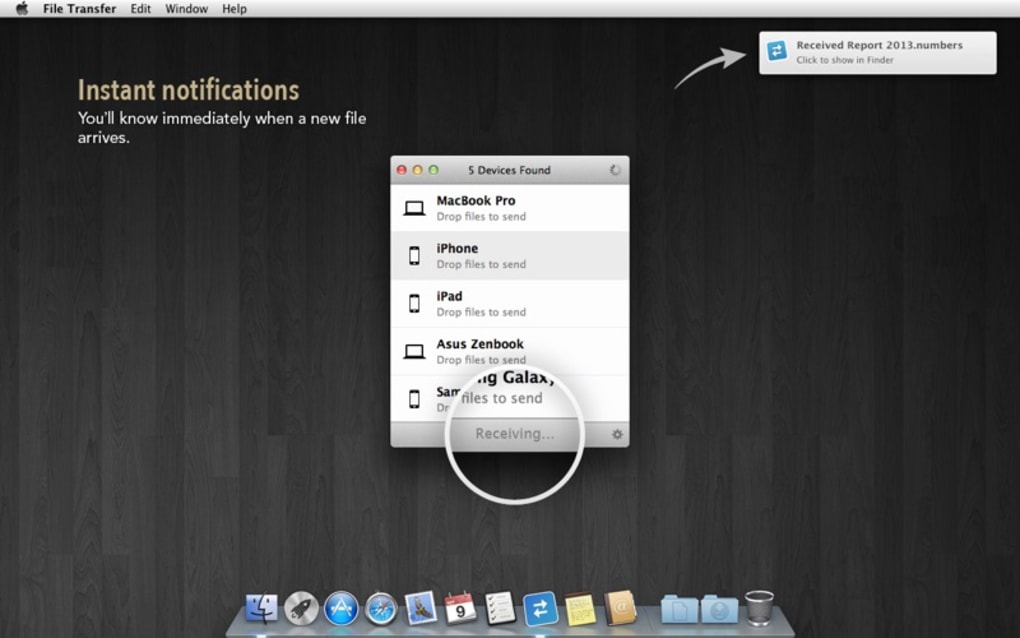
Because transfers happen over the same Wi‑Fi network, the data never leaves your premises, ensuring privacy and speed. Users also benefit from customizable notifications, clipboard sharing, and seamless integration with popular file‑manager apps on each platform. In short, File Transfer provides a secure, fast, and user‑friendly way to exchange photos, videos, documents, and even whole folders across any combination of Windows, macOS, Android, and iOS devices.
Key Features
- Automatic device discovery – no IP address entry required.
- True cross‑platform support for Windows, macOS, Android, and iOS.
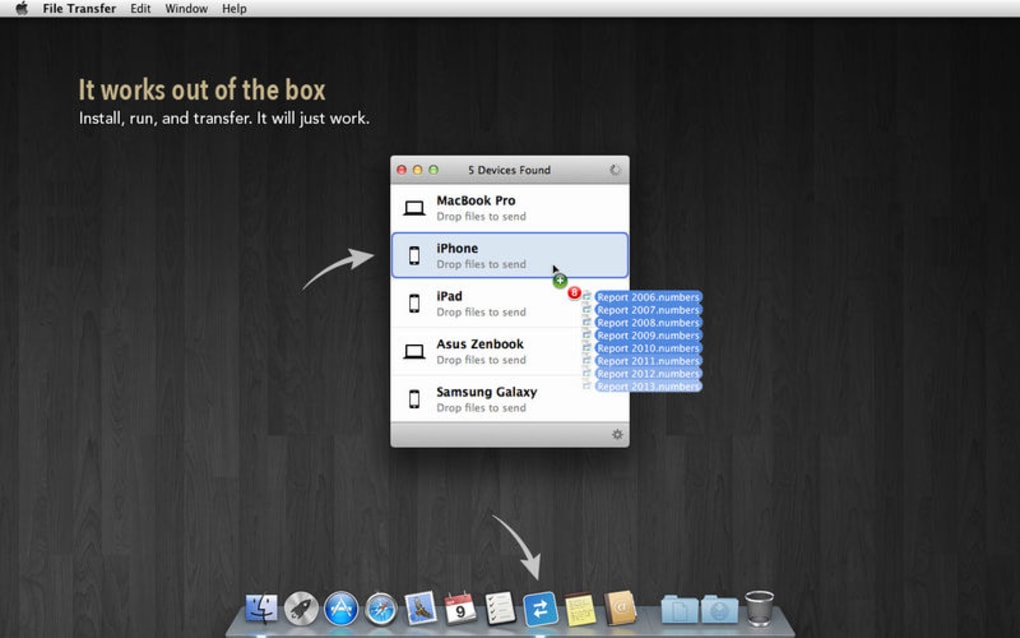
- Drag‑and‑drop transfer interface that works with folders and individual files.
- Local‑network (LAN) transfer – no cloud upload, preserving privacy.
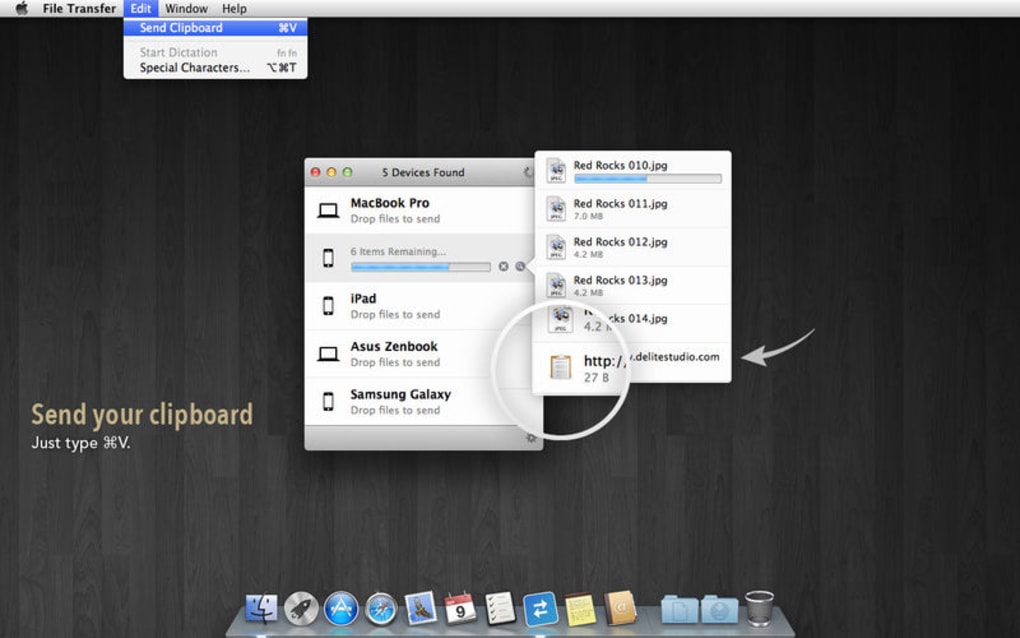
- Clipboard sharing – move text or images between devices instantly.
- Customizable alerts and notifications for completed transfers or errors.
- Integration with native file managers and macOS Notification Center.
- Optimized performance on MacBook Pro, Windows 10/11, and latest Android/iOS releases.
- Zero‑configuration setup – start transferring within seconds of launch.
- Free version with optional premium upgrade for larger file queues and priority support.
The feature set focuses on simplicity without sacrificing power. By eliminating the need for cables or third‑party cloud accounts, File Transfer reduces the friction that typically slows down multi‑device workflows. Its lightweight architecture means it consumes minimal system resources, making it suitable for older hardware while still delivering rapid transfer speeds on modern gigabit Wi‑Fi networks. The inclusion of clipboard sharing sets it apart from many competitors, allowing users to copy text on a phone and paste it directly on a desktop, a handy trick for developers, designers, and anyone who frequently switches between devices.
Installation & Usage Guide
Getting started with File Transfer is straightforward. Follow these steps to download, install, and begin moving files across your ecosystem:
- Download the installer – Visit the official website or your platform’s app store (Microsoft Store, Mac App Store, Google Play, or Apple App Store) and click the “Download File Transfer” button. The installer is free and signed with a trusted certificate.
- Run the installer – On Windows, execute the .exe file and follow the wizard prompts. macOS users double‑click the .dmg file, drag the app to the Applications folder, and launch it. Android and iOS users tap “Install” and grant the necessary permissions (network access, storage access, and notification permissions).
- Connect to the same Wi‑Fi network – Ensure all devices you intend to transfer between are on the same local network. File Transfer works over LAN only; no internet connection is required beyond the router.
- Launch the application – The app opens a small window showing a list of discovered devices. No manual IP entry or QR‑code scanning is needed; devices announce themselves via mDNS/Bonjour.
- Drag and drop files – Select files or folders from the left pane (your local device) and drag them onto the target device’s icon. A progress bar appears, and you receive a notification when the transfer completes.
- Optional settings – Access the preferences menu to enable alerts, set a default download folder, or limit transfer speed if you share bandwidth with other network users.
Because File Transfer operates locally, you’ll notice near‑instantaneous transfer rates for typical home Wi‑Fi (up to 100 Mbps on a 2.4 GHz band, higher on 5 GHz). For very large files, the app can queue multiple transfers and continue in the background, allowing you to keep working on other tasks. The interface also supports right‑click context menus for “Open folder,” “Copy path,” or “Delete after transfer,” giving you granular control over how you manage incoming data.
Compatibility, Pros & Cons
File Transfer runs natively on the following operating systems:
- Windows 10, Windows 11 (64‑bit)
- macOS 10.15 (Catalina) and later, including macOS Ventura
- Android 8.0 (Oreo) and later
- iOS 13 and later (iPadOS included)
Pros
- Zero‑configuration: Devices are detected automatically, removing the hassle of manual setup.
- Cross‑platform: One app works on Windows, macOS, Android, and iOS, consolidating your file‑sharing tools.
- Secure local transfers: No cloud involvement means your data stays within your network.
- Fast performance: Utilizes LAN speeds, often outpacing Bluetooth or email attachments.
- Lightweight footprint: Minimal CPU and RAM usage, ideal for older laptops or low‑end smartphones.
- Clipboard sync: Unique feature that saves time when copying text or images between devices.
Cons
- Requires all devices to be on the same Wi‑Fi network; remote transfers are not supported.
- The free version limits the number of simultaneous transfers, which may affect power users.
- On heavily congested networks, transfer speeds can dip, though this is typical for LAN‑based tools.
- iOS version may need additional permission prompts for background file access, which can be confusing for newcomers.
Overall, the advantages of File Transfer—especially its simplicity and privacy—outweigh the minor limitations. Users who need occasional remote transfers might combine File Transfer with a VPN or a cloud service, but for everyday local sharing, it remains a top choice.
FAQ & Final Thoughts
Do I need an internet connection to use File Transfer?
No. File Transfer works over your local Wi‑Fi network (LAN). As long as the devices are connected to the same router, the data never leaves your premises, ensuring privacy and fast speeds.
Is there a file size limit?
The free version imposes a 2 GB per‑file limit to keep bandwidth balanced. The premium upgrade removes this restriction, allowing unlimited file sizes.
Can I transfer files between a Windows PC and an iPhone?
Yes. File Transfer supports all combinations of Windows, macOS, Android, and iOS. Just ensure both devices are on the same Wi‑Fi network and the app is installed on each.
What security measures does File Transfer use?
Transfers are encrypted with TLS 1.2 during the LAN handshake, and no data is stored on external servers. The app also respects the operating system’s sandboxing rules.
Can I schedule automatic backups with File Transfer?
File Transfer focuses on on‑demand transfers and does not include a scheduler. However, you can combine it with third‑party automation tools (e.g., macOS Automator or Windows Task Scheduler) to trigger transfers at set intervals.
In conclusion, File Transfer stands out as a secure, fast, and genuinely cross‑platform solution for anyone who needs to move files quickly without the clutter of cables or cloud services. Its intuitive drag‑and‑drop interface, automatic device discovery, and local‑network privacy make it an essential tool for home offices, creative teams, and everyday users alike. If you’re looking for a free, no‑hassle way to share documents, photos, or large media files across Windows, macOS, Android, and iOS, downloading File Transfer today will streamline your workflow and keep your data safely within your own network.
Ready to simplify your file sharing? Click here to download File Transfer for free and start moving your files instantly.







